

Install Docker on the board first. For general Edge install on Arduino-class hardware, see Arduino UNO Q. Visual Memory runs two Edge containers (faces + objects), not the default single
:8080 store.Overview
Visual Memory runs on Ventuno Q with Moorcheh Edge as the on-device match layer. A USB webcam watches the scene. The app does two jobs in parallel:
When an item is known, the app builds a short spoken line:
- Template mode (default) - fixed sentence from name + shelf
- LLM mode (optional) - an external chat LLM (Ollama or OpenAI-compatible) rewrites the same facts already in memory into one natural sentence
~/piper/, with espeak as fallback. The browser never plays audio; the board speaker does.
Everything that matters for matching stays on the board: models, vectors, and decisions. Spoken guidance does not use Moorcheh /answer or a third Edge RAG store. The optional LLM receives text facts only (already matched name / shelf / description) - never the camera image, and never an unknown detection.
Powered by Moorcheh - PyPI moorcheh-edge, Docker moorcheh/moorcheh-edge.
Why Moorcheh Edge
Moorcheh Edge is built for on-device vector search. Visual Memory keeps two Edge stores on the same board:
On edge hardware this matters:
- Fast similarity search as galleries grow
- Stable scores you can threshold for GRANT / DENY and known / unknown items
- No cloud round-trip for identity or product match
- Same Edge runtime pattern used across Moorcheh on-device projects
Why edge access + shelf guidance?
- Privacy - embeddings and decisions stay on the device
- Reliability - matching does not depend on internet uptime
- Latency - detect, embed, and search run on the board
- Control - you decide thresholds and who / what is enrolled
- Retail clarity - known items speak a shelf line; unknowns are never invented by the LLM
- Simple ops - USB-C power, USB camera, browser UI after one-time setup
Architecture
End-to-end path from camera to UI and speaker: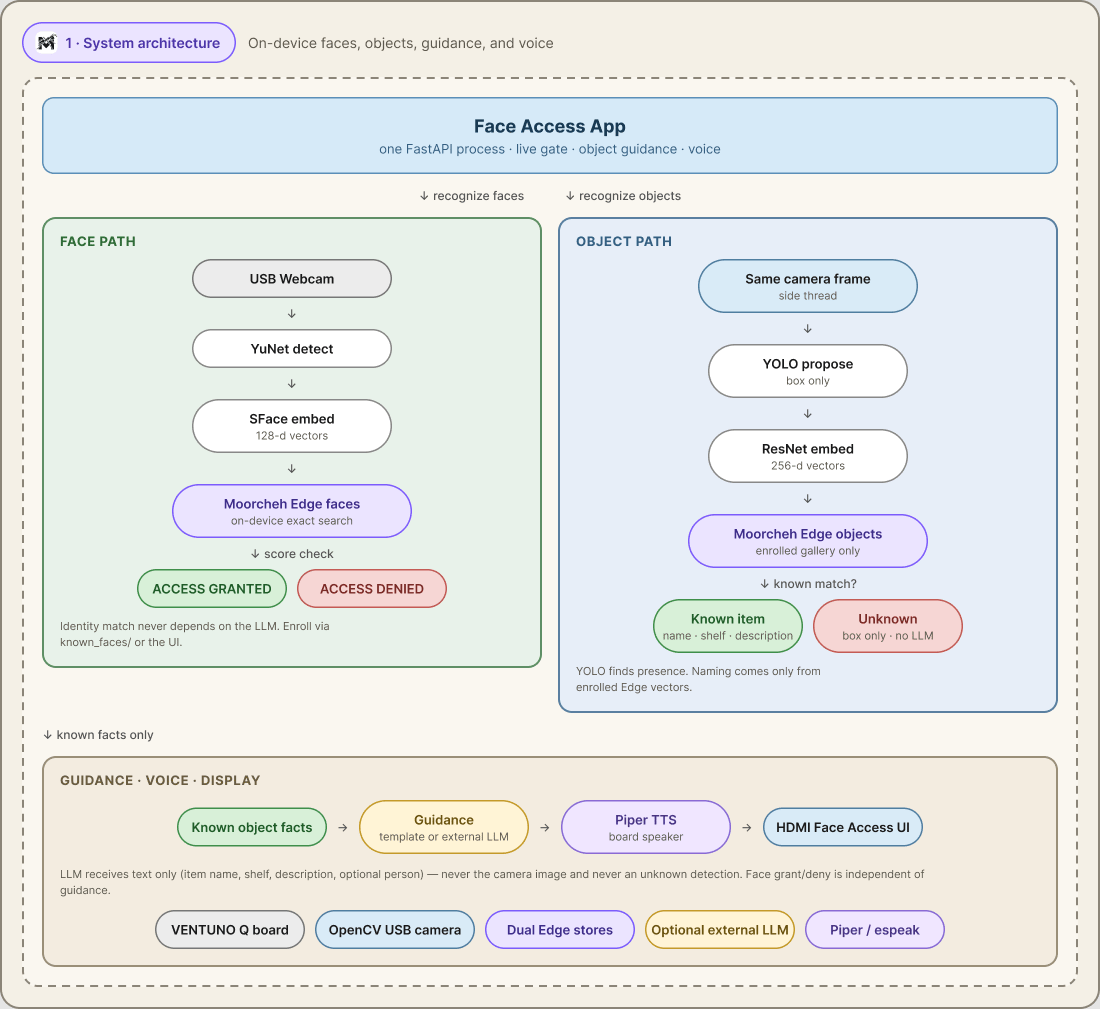
Visual Memory on Ventuno Q - faces and objects through dual Moorcheh Edge stores, then optional guidance and voice.
Plain-language flow
- The USB camera sends frames into Visual Memory.
- The face path asks: “Do we know this person?” → grant or deny on the screen.
- The object path asks: “Is this an enrolled item?” → if yes, use its name, shelf, and description.
- If the item is known, build one short sentence (template or external LLM).
- Piper / espeak speaks that sentence on the board speaker.
- The browser shows the live stream, boxes, and status (Wi-Fi or HDMI).
Technical flow (faces)
- Frame (cadence every 3 frames, scale 0.35)
- YuNet detect → SFace embed (128-d)
- Search Moorcheh Edge faces
- Score ≥
FACE_MATCH_THRESHOLD(default 0.28) → ACCESS GRANTED + name
Technical flow (objects)
- Same camera frame pushed to a side thread (every 3 frames)
- YOLO proposes boxes (not names)
- ResNet embed (256-d) on each crop
- Search Moorcheh Edge objects (top 3, margin 0.03)
- Score ≥
OBJECT_MATCH_THRESHOLD(default 0.38) → known name + shelf + description - Else → Unknown (draw only)
Technical flow (guidance + voice)
- Only known object facts (and optional person name) enter guidance
GUIDANCE_MODE=template→ fixed sentence from those factsGUIDANCE_MODE=llm→ external chat LLM with the facts in the prompt; fallback to template if the LLM is down- Standalone Piper (or espeak) speaks the line on the board speaker
What runs on Ventuno Q
Day-to-day: start faces Edge, start objects Edge, start the UI. Camera, thresholds, audio runtime, and Piper paths are set by
start.sh defaults.
Features
Entrance / visitor- Live camera gate with ACCESS GRANTED / DENIED
- Identity label and similarity score
- Known item boxes + shelf line
- Unknown object boxes without inventing names
- Browser UI over Wi-Fi or HDMI
- Multi-photo person onboarding
- Item upload with name, shelf, description
- Bulk CLI enroll for larger sets
- Dual Moorcheh Edge stores
- Optional external LLM guidance + Piper / espeak TTS
- Scripts:
start_faces_edge.sh,start_objects_edge.sh,start.sh,scripts/enroll_faces.py,scripts/enroll_objects.py
Hardware requirements
Software stack
Repo layout
How to: one-time setup
- Clone github.com/moorcheh-ai/ShelfIn
- Install Docker; add your user to the
dockergroup - Create a venv and install deps
- Download face models; place
yolov8n.ptin the project root - Optional: install Piper under
~/piper/piper/(otherwise use espeak) - Follow the repo README.md for any board-specific notes
start.sh):
espeak-ng for spoken lines.
How to: every boot
start.sh already sets camera (opencv / index 0), object thresholds (0.38 / 0.55 / 0.03), XDG_RUNTIME_DIR, and Piper when installed. No exports required for the default demo.
- On the board: http://127.0.0.1:8501/
- From another PC: http://<board-ip>:8501/
How to: enroll faces and items
Staff enroll people and shelf items once. After that, live recognition can grant access and speak shelf lines.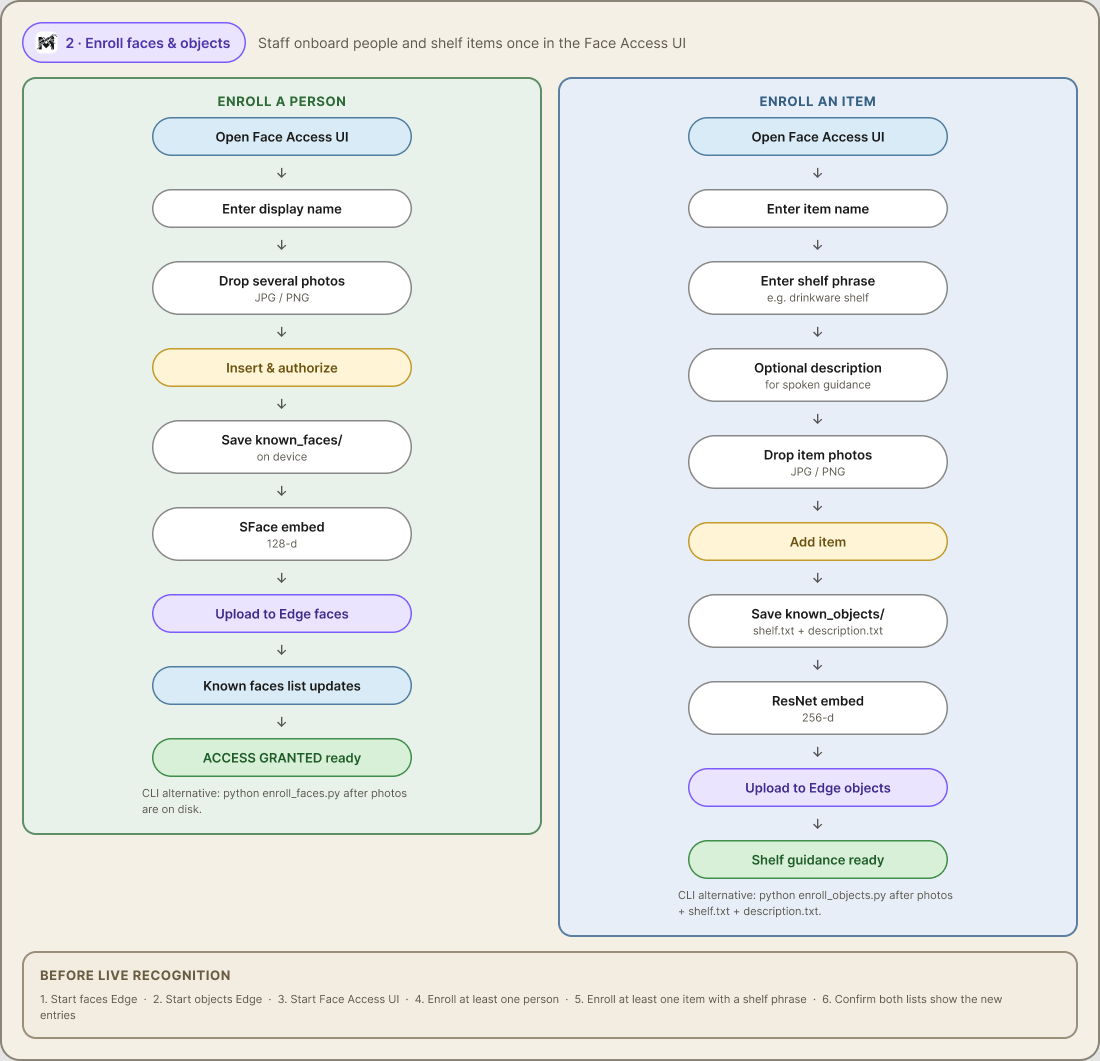
Enroll faces and objects into the two Moorcheh Edge stores.
Enroll a person (UI)
- Open the Visual Memory UI
- Under Onboard a person, enter a display name
- Drop or choose several photos (JPG / PNG)
- Click Insert & authorize
- Vectors upload to Moorcheh Edge faces (
:8083)
Enroll an item (UI)
- Under Add an item, enter name, shelf phrase, and optional description
- Drop or choose item photos
- Click Add item
- Vectors upload to Moorcheh Edge objects (
:8081)
Bulk enroll (backend scripts)
For larger galleries, skip the UI and run scripts with Edge up:known_faces/ and known_objects/ are gitignored).
Enroll checklist
- Faces Edge up (
start_faces_edge.sh) - Objects Edge up (
start_objects_edge.sh) - Visual Memory UI running (
start.sh) - or run the CLI enroll scripts with Edge up - At least one person and one item enrolled
- Confirm both lists before relying on live recognition
How to: live recognition
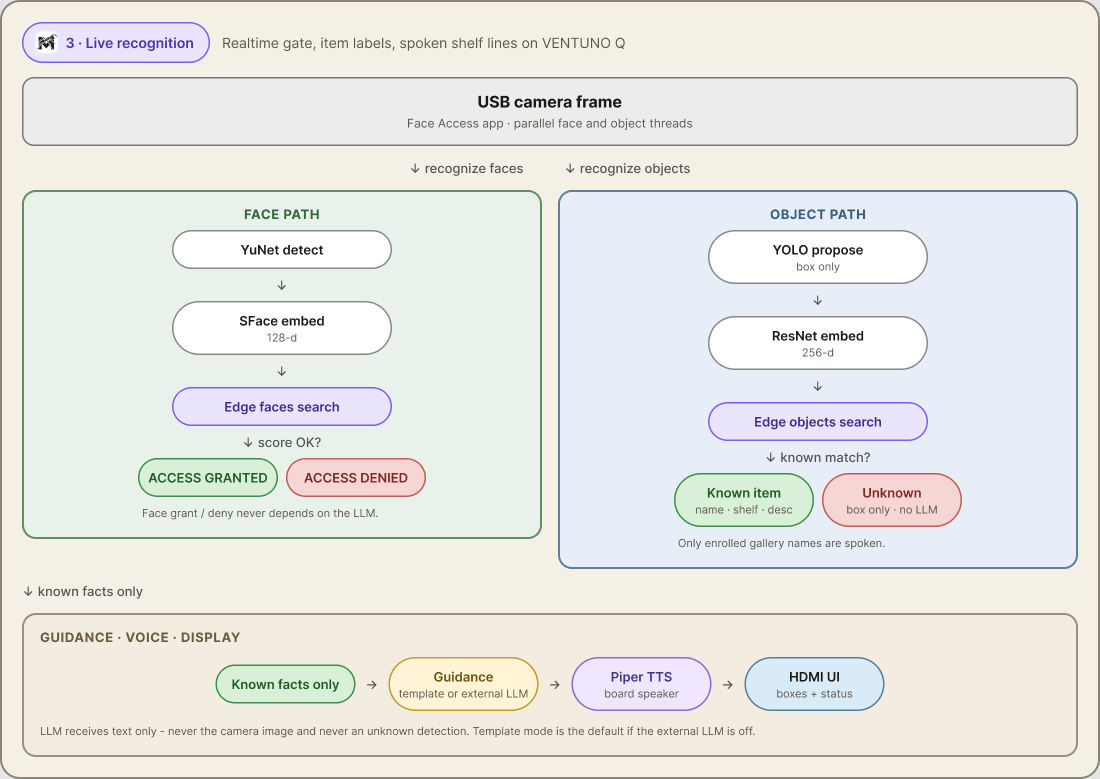
Live path: known face grants access; known item names its shelf and can be spoken.
- USB camera frame arrives
- Face path - YuNet → SFace → Edge faces → ACCESS GRANTED or ACCESS DENIED
- Object path - YOLO → ResNet → Edge objects → known item or Unknown
- If known → guidance sentence → Piper / espeak on the speaker
- UI shows boxes, scores, and gate status
Defaults (no exports required)
Optional overrides
Only if you need them:How matching works
Faces: frame → YuNet → SFace 128-d → Edge:8083 → GRANT / DENY
Objects: frame → YOLO box → ResNet 256-d → Edge :8081 → known name or Unknown
Guidance: known facts only → template or external LLM → Piper / espeak
Use cases
- Door / lobby face access on Ventuno Q
- Retail or warehouse shelf guidance for enrolled products
- Privacy-first demos without cloud face APIs
- Edge AI proof-of-concept before a fixed install
Links
- Visual Memory source - https://github.com/moorcheh-ai/ShelfIn
- Demo video - https://youtu.be/HGj5Ky9hMFs
- Moorcheh Edge - https://github.com/moorcheh-ai/moorcheh-edge
- Documentation - https://docs.moorcheh.ai/on-edge/
- PyPI - https://pypi.org/project/moorcheh-edge/
- Docker Hub - https://hub.docker.com/r/moorcheh/moorcheh-edge
- Architecture diagrams (Figma) - https://www.figma.com/design/4ZReJYcUDZaEkj22gzJerR/VENTUNO-Face-Access-%E2%80%94-System-Architecture
- Moorcheh - https://moorcheh.ai
Next steps
Arduino UNO Q
Board Docker + moorcheh-edge basics
Upload vectors
Precomputed vector upload (same mode Visual Memory uses)
Retail Kiosk
Text + voice RAG kiosk on UNO Q
Source on GitHub
Source repo and README